Tech explained
Password Manager App or Built-in Passwords? Explained
Updated Nov 28, 2026 · 3 min read
If every device in your home is Apple or every device is Google, the built-in password manager is free and good enough. If you mix devices, say an iPhone with a Windows laptop and Firefox, or want to share passwords with family across platforms, a standalone password manager is the better pick. Either way, protect the main account with two-factor authentication.
Key points
- ●Apple Passwords and Google Password Manager are free and already on your phone.
- ●Both built-in options encrypt passwords, flag leaked or reused ones and support passkeys.
- ●Standalone managers work in every browser and on every operating system.
- ●The weak spot for both is your main account password, so turn on two-factor authentication.
- ●All-Apple or all-Google: built-in. Mixed devices: standalone.
The question
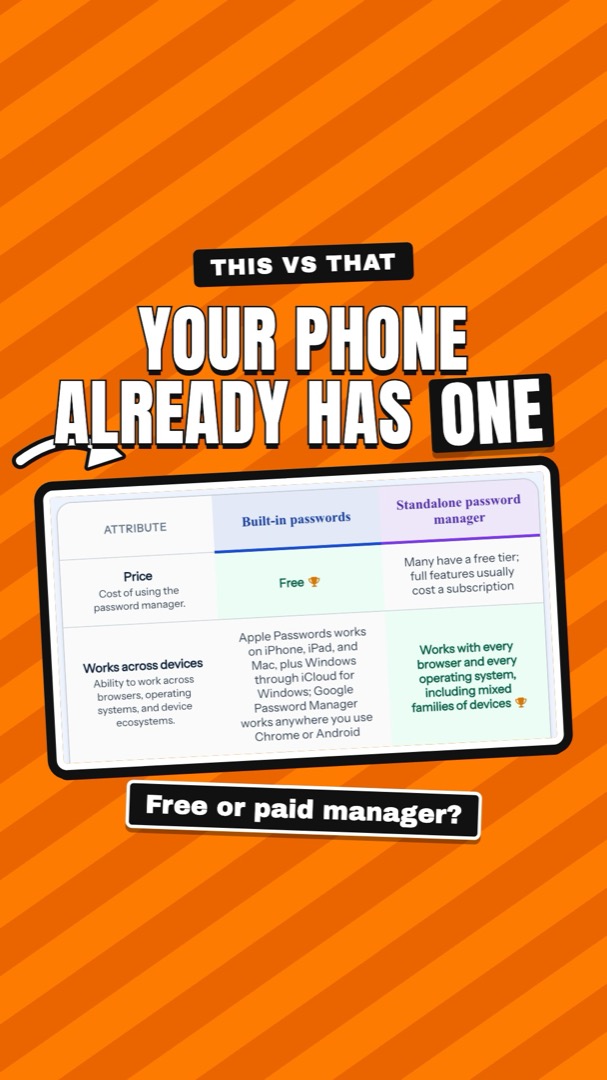
Should you pay for a password manager app, or just use the one already built into your phone? Most people already have a free one and don't realize it. One question decides it: are your devices all from one company, or a mix?
Here's what each option does, where it falls short, and how to choose without overthinking it.
What you already have for free
- Apple Passwords became its own app with iOS 18 in 2024. It works on iPhone, iPad and Mac, plus Windows through iCloud for Windows.
- Google Password Manager lives in Chrome and Android, and works anywhere you use Chrome or Android.
Both cover the security basics. They encrypt your passwords, warn you about reused or leaked ones, and support passkeys.
The catch is reach. Apple's works best when everything you own is Apple, and Google's works best when you live in Chrome and Android. Step outside that, like a Windows laptop running Firefox next to your iPhone, and the built-in option stops following you around.
What a standalone manager adds
A standalone password manager, such as 1Password or Bitwarden, is a separate app that isn't tied to one company's devices. Two things make it worth having:
- Mixed devices. An iPhone, a Windows laptop and Firefox, say. A standalone manager works with every browser and every operating system.
- Family sharing across platforms. Apple and Google offer shared groups, but only inside their own ecosystems. A standalone manager's shared vaults work across everyone's devices, whatever they use.
Many standalone managers have a free tier. Full features usually cost a subscription, so check what the free tier covers before you sign up. If you only need one person's passwords on a couple of devices, a free tier may be all you need.
The side-by-side
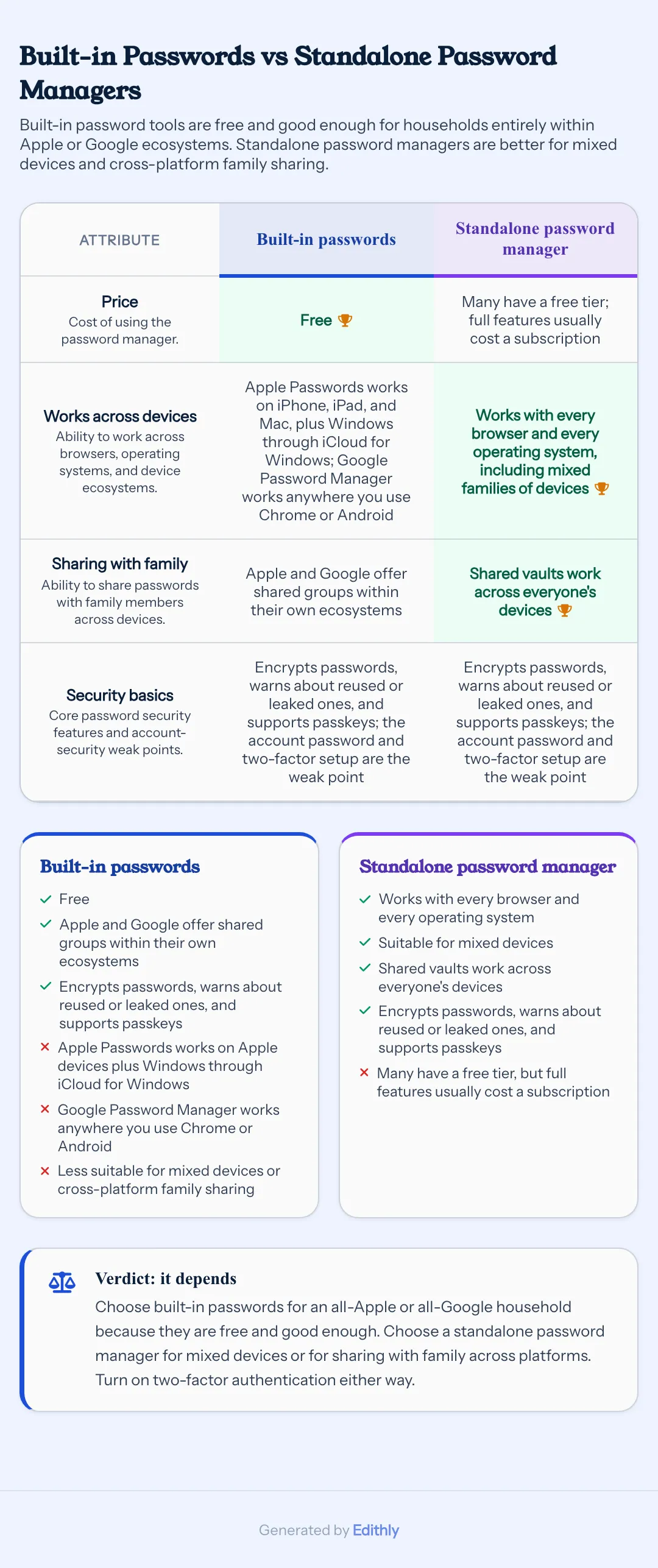
The visual sheet above puts the two options next to each other. In short:
| Built-in passwords | Standalone manager | |
|---|---|---|
| Price | Free | Many have a free tier; full features usually a subscription |
| Works across devices | Apple devices plus Windows via iCloud for Windows; Google anywhere Chrome or Android runs | Every browser and operating system |
| Family sharing | Shared groups within Apple or Google | Shared vaults across everyone's devices |
| Security basics | Encrypts, flags leaked or reused passwords, supports passkeys | Same |
| Weak point | Your account password and two-factor setup | Same |
The weak spot is the same for both
Whichever you pick, everything sits behind one account. For Apple Passwords that's your Apple account, for Google Password Manager your Google account, and for a standalone app its own main password. If someone gets into that account, they get into everything.
That's true of a built-in manager and a paid app alike. Paying for a standalone manager doesn't remove this risk; it just moves it to a different account.
So the most important setting isn't which manager you choose. It's turning on two-factor authentication for the account that unlocks it.
Which one to pick
- All-Apple or all-Google household? Use the built-in one. It's free and good enough.
- Mixed devices, or family sharing across platforms? Go standalone.
- Not sure? Start with the built-in one you already have. It costs nothing, and if you later need it to work on a device it doesn't support, that's your sign to look at a standalone app.
And either one beats reusing the same password everywhere. A reused password that leaks from one site can open every other account that shares it.
Frequently asked questions
Is Apple Passwords good enough?
For an all-Apple household, yes. It's free, encrypts your passwords, warns about leaked or reused ones and supports passkeys. It works on iPhone, iPad and Mac, plus Windows through iCloud for Windows. It became its own app with iOS 18 in 2024.
Is it safe to save passwords in Chrome?
Google Password Manager encrypts your passwords, flags leaked or reused ones and supports passkeys, the same basics a standalone app covers. The weak point is your Google account, so protect it with a strong password and two-factor authentication.
Do I need to pay for a password manager?
Not necessarily. The built-in options are free, and many standalone managers, such as 1Password or Bitwarden, have a free tier. Full features usually cost a subscription.
When is a standalone password manager worth it?
When your devices are mixed, like an iPhone, a Windows laptop and Firefox, or when you want to share passwords with family across every phone. Standalone managers work in every browser and operating system, and their shared vaults work across everyone's devices.